🎓 Step-by-step tutorial

How to use Card Rainbow

Simple, click-by-click help for every feature, with real screenshots and short videos from the app. Tap a topic to jump to it.

Screenshots use real cards from the built-in checklists. Prices and values are example data.

  1. 1Create your account & free trial
  2. 2A quick tour of the home screen
  3. 3Add a rainbow (search, browse or build your own)
  4. 4Check off cards, price paid & value
  5. 5NASCAR, F1 & Football tabs
  6. 6Scan a card (and scan limits)
  7. 7Find it for sale (Card Gorilla & eBay)
  8. 8Sent to grading & graded badges
  9. 9Mark sold or traded & your profit
  10. 10Download to Excel
  11. 11Backup & import
  12. 12Friends & have/need sharing
  13. 13The “cards I need” link
  14. 14Print labels (JADENS & NIIMBOT)
  15. 15Sealed boxes
  16. 16Account, plan & scans used
  17. 17Light / dark mode & offline
  18. 18Install on your phone’s home screen
  19. 19Send feedback
  20. ?Common questions
1

Create your account and start your free trial

Every new account gets 7 days free. No card needed to start.

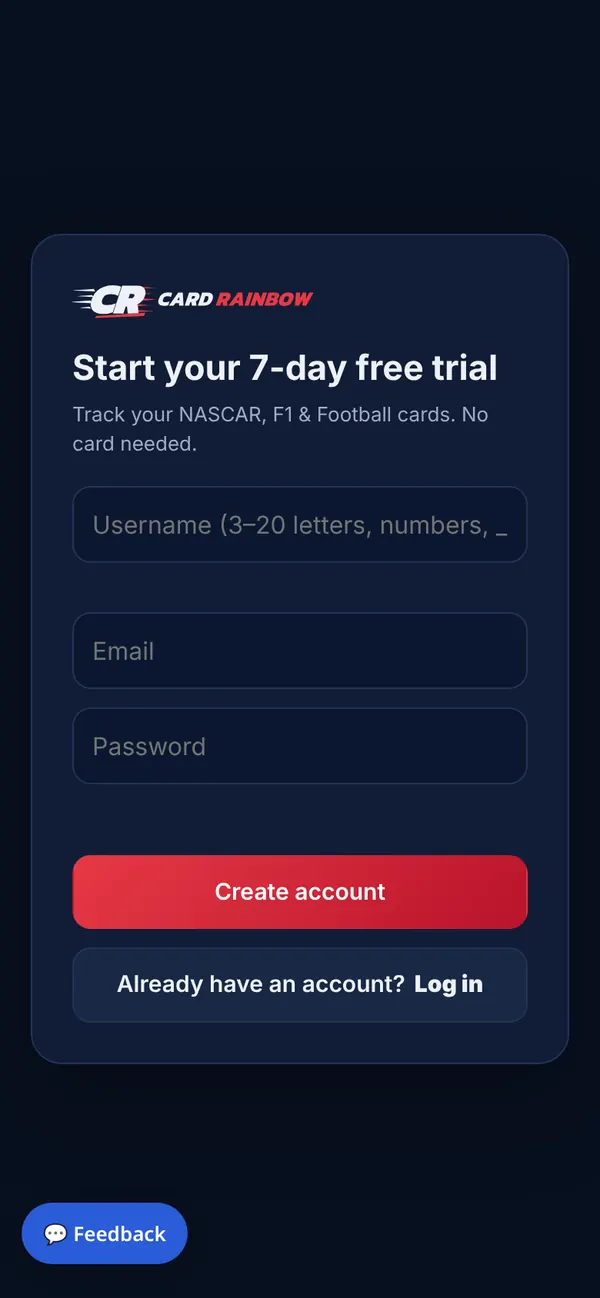
  1. Go to cardrainbow.com and tap Start free trial at the top.
  2. Pick a username (3–20 letters, numbers or _), then type your email and a password. Tap Create account.
  3. If we ask you to confirm, open the email from Card Rainbow, tap the link, then come back and Log in.
  4. That’s it. Your 7-day free trial starts right away, with everything turned on (including AI scanning).
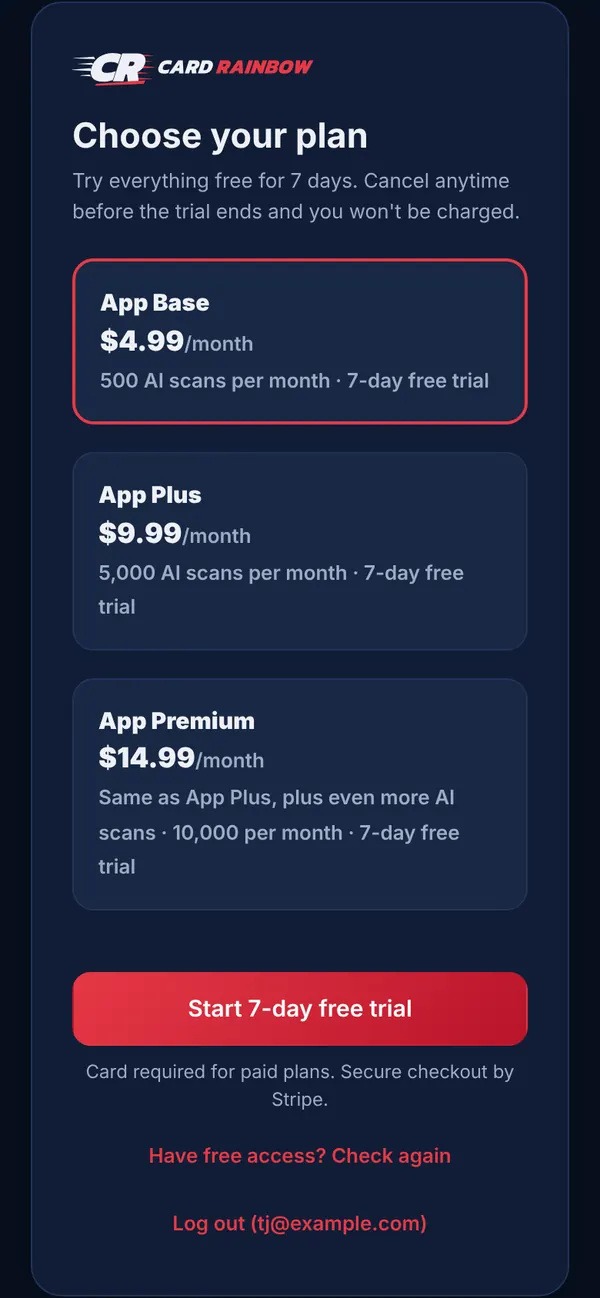
  5. When the free week is over, you’ll see Choose your plan:
    • App Base: $4.99/month, 500 AI scans a month
    • App Plus: $9.99/month, 5,000 AI scans a month
    • App Premium: $14.99/month, 10,000 AI scans a month
    Tap a plan, then tap the red button and finish the secure checkout. A card is needed for paid plans. Your rainbows stay saved the whole time.
Already have an account? Tap Log in. Forgot your password? Tap Forgot password? on the log-in screen and we’ll email you a reset link. You can see when your trial ends in 👤 Account › Plan.
↑ Back to topics
Sign-up screen with username, email and password boxes and a Create account button
The sign-up screen
2

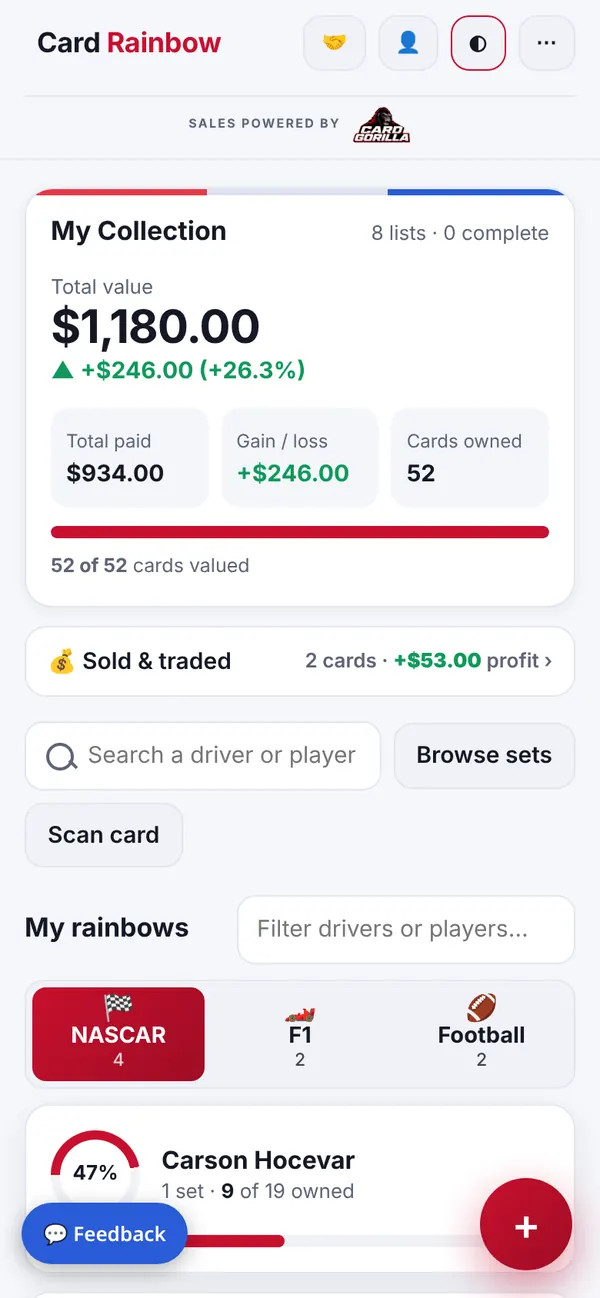
Find your way around the app

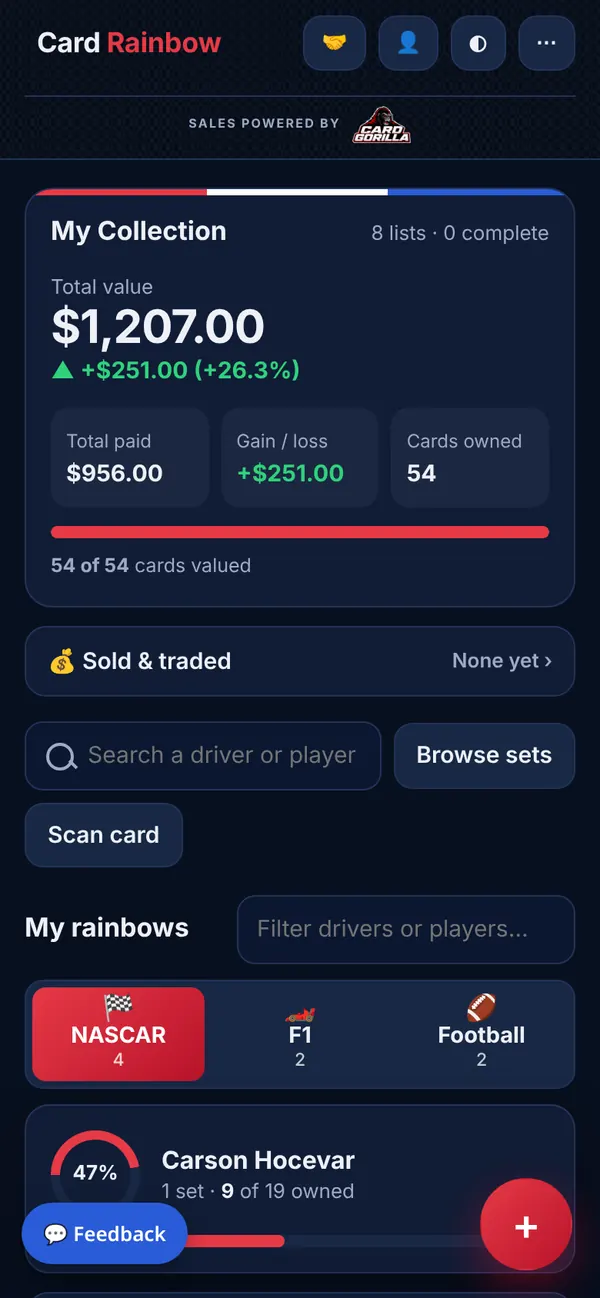
Your home screen is My rainbows. Here’s what everything does.

  1. My Collection at the top shows your total value, what you paid, your gain or loss, and how many cards you own.
  2. 💰 Sold & traded opens the history of cards you’ve sold or traded, with your profit.
  3. Use the search box, Browse sets or Scan card to add cards (see the next sections).
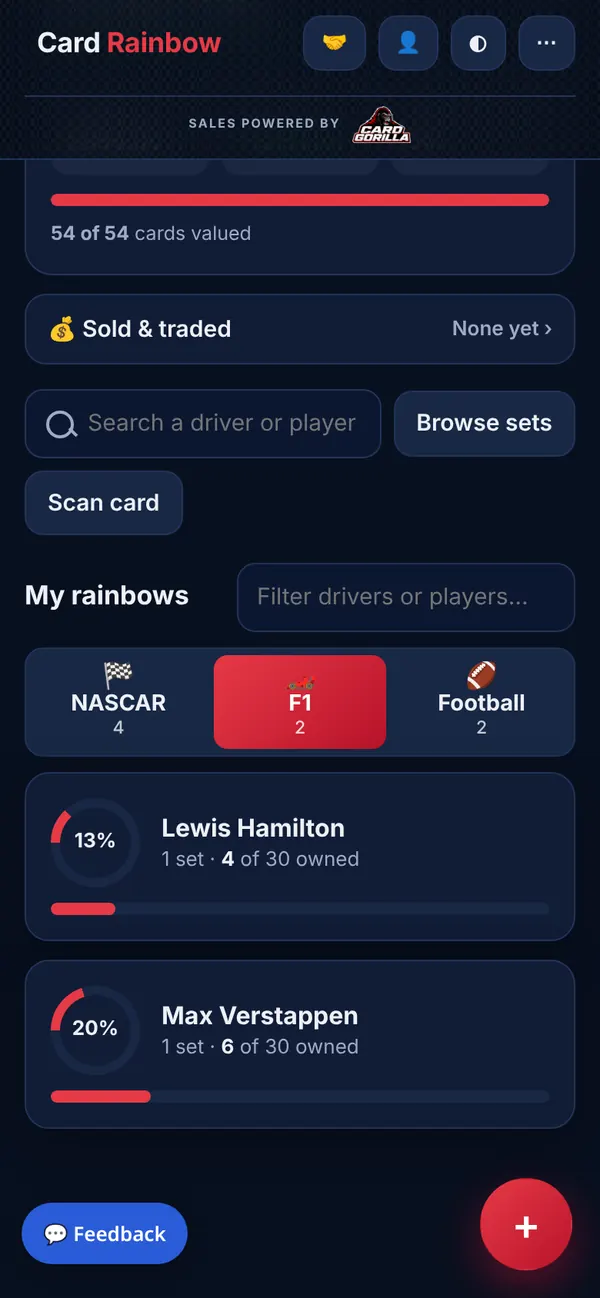
  4. Under My rainbows, tap a sport tab, then tap a driver or player to see their sets.
  5. Tap the red + button at the bottom right to build a rainbow by hand.
  6. The buttons at the top of the screen:
    • 🤝 Friends: share your lists and your “cards I need” link
    • 👤 Account: account settings, plan, scans used
    • ◐: switch light or dark mode
    • ⋯: Download to Excel, backup, Sold & traded, Tutorial / Help
On a computer? The same buttons are in the menu down the left side: My rainbows, Browse sets, New rainbow, Sold & traded, Download & backup, Sealed boxes, Tutorial / Help and 🤝 Friends.
↑ Back to topics
Home screen with My Collection totals, Sold and traded, search, Browse sets, Scan card and NASCAR, F1 and Football tabs
The home screen (My rainbows)
3

Add a rainbow

A “rainbow” is one card plus every parallel it comes in, from base to the 1/1. There are three ways to start one.

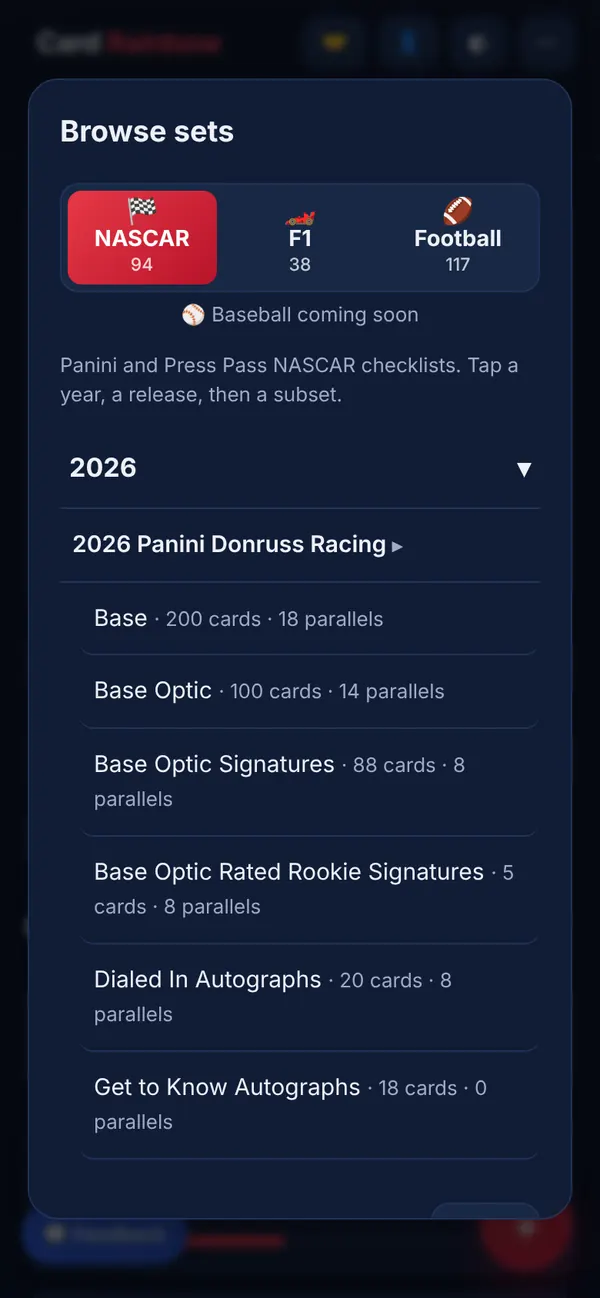
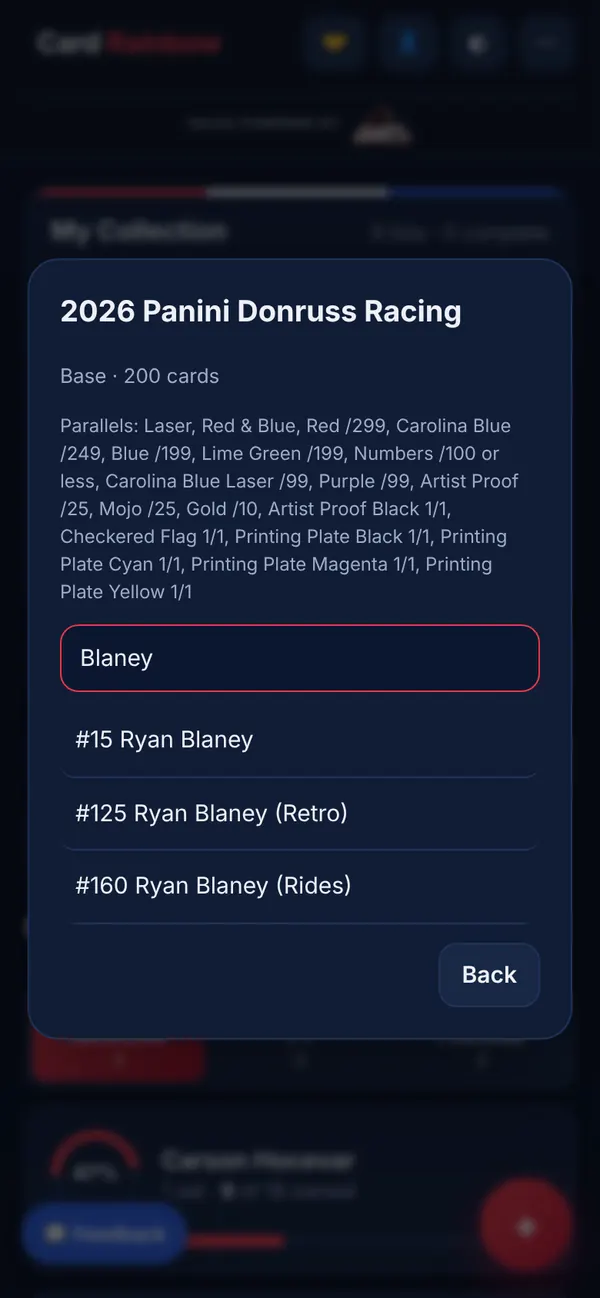
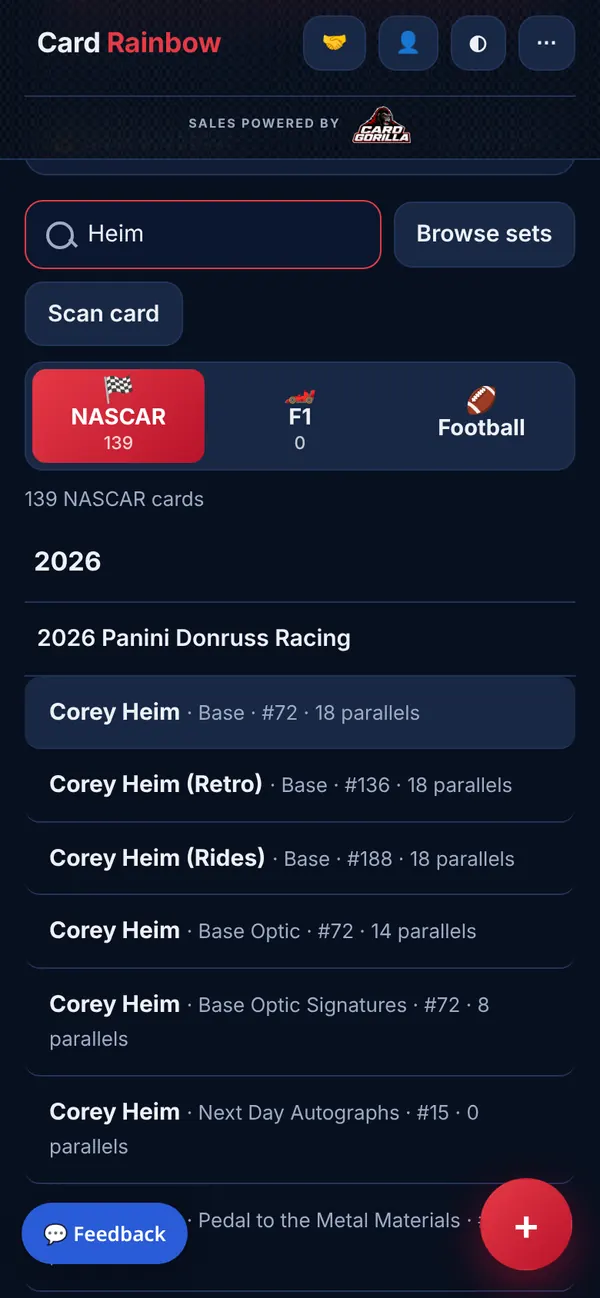
  1. Browse the checklists: tap Browse sets, pick 🏁 NASCAR, 🏎️ F1 or 🏈 Football at the top, then tap a year, a release and a subset (like Base).
  2. Type the driver or player name in the search box, then tap the card. Card Rainbow adds Base and every parallel with its print run (like /99 or 1/1).
  3. Or search everything: type a name in Search a driver or player in all sets… on the home screen and tap any card in the results. Cards you already track show a green Tracking badge.
  4. Or build your own: tap the red +, fill in Player / driver, Year, Card #, Set and Sport, and tap Save. Then add parallels with + Variation or Quick-add template.
What’s built in: NASCAR (Panini 2017–2026 and Press Pass 2009–2015), F1 (Topps 2020–2026) and Football (Panini and Topps 2024–2026). Baseball is coming soon.
↑ Back to topics
▶ Watch it · 12 sec
Adding a rainbow from Browse sets
4

Check off the cards you own

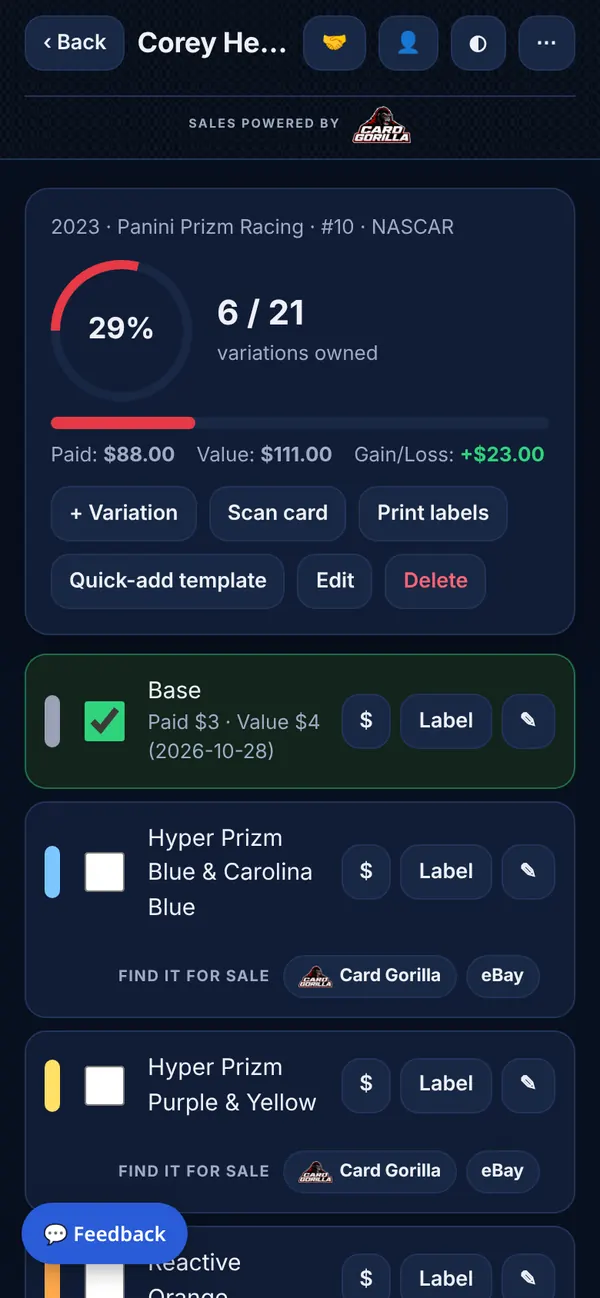
Open a rainbow to see every parallel. Owned cards turn green and the ring shows how close you are.

  1. On My rainbows, tap a driver or player, then tap the set.
  2. Tick the box next to each parallel you own. The card turns green and the % ring updates.
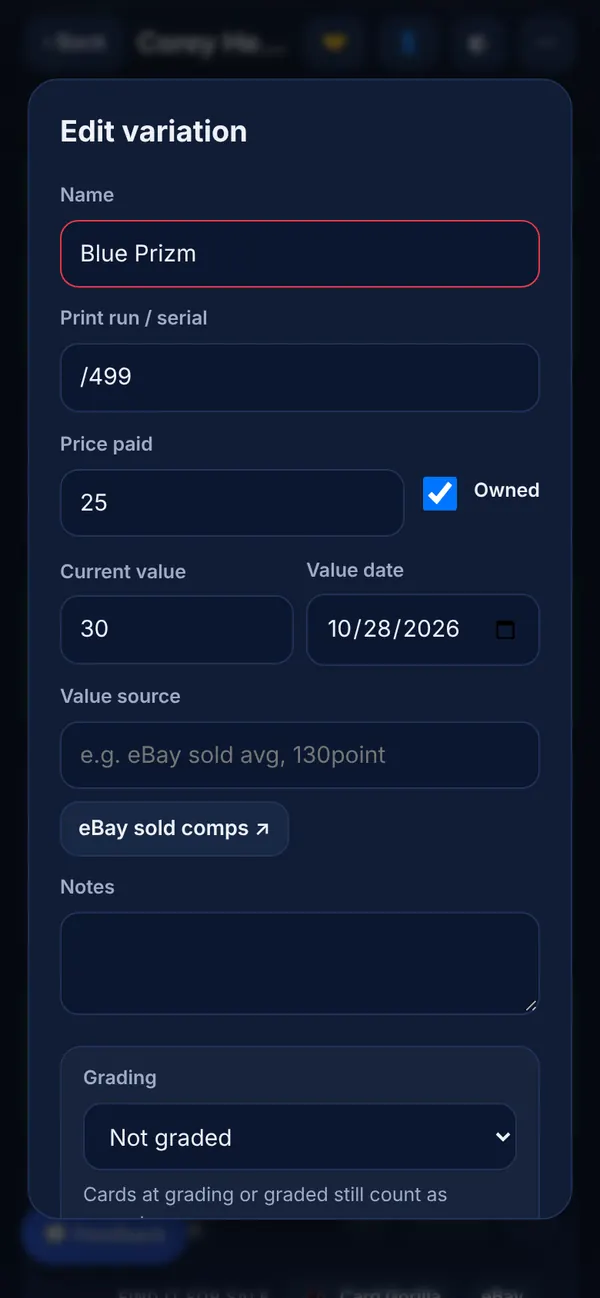
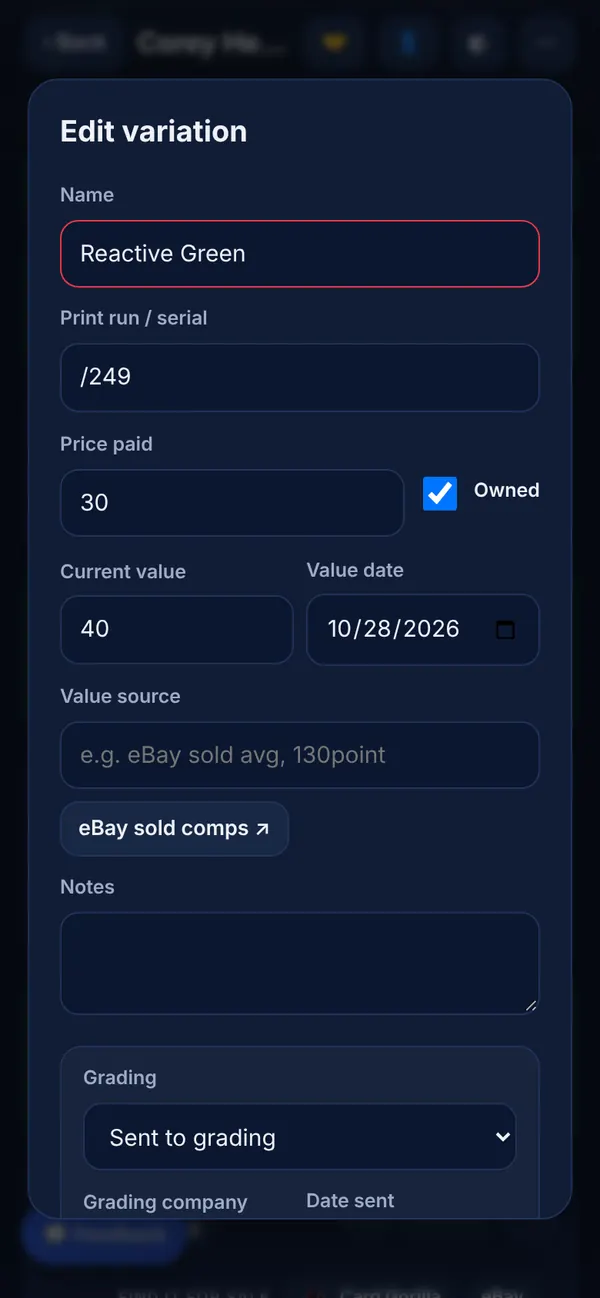
  3. To log prices, tap the card’s name or ✎. Enter Price paid, Current value, the Value date, and any notes, then tap Save.
  4. Not sure what it’s worth? Tap $ on the card (or eBay sold comps ↗ in the edit screen) to see what that exact card recently sold for on eBay.
  5. The top of the rainbow adds it all up: Paid, Value and Gain/Loss.
Other buttons on a rainbow: + Variation adds a parallel that’s missing, Edit changes the player, year or set, and Delete removes the whole rainbow.
↑ Back to topics
▶ Watch it · 14 sec
Checking off Corey Heim parallels
5

NASCAR, F1 and Football tabs

Card Rainbow keeps each sport in its own tab, so your football cards don’t get mixed in with your racing cards.

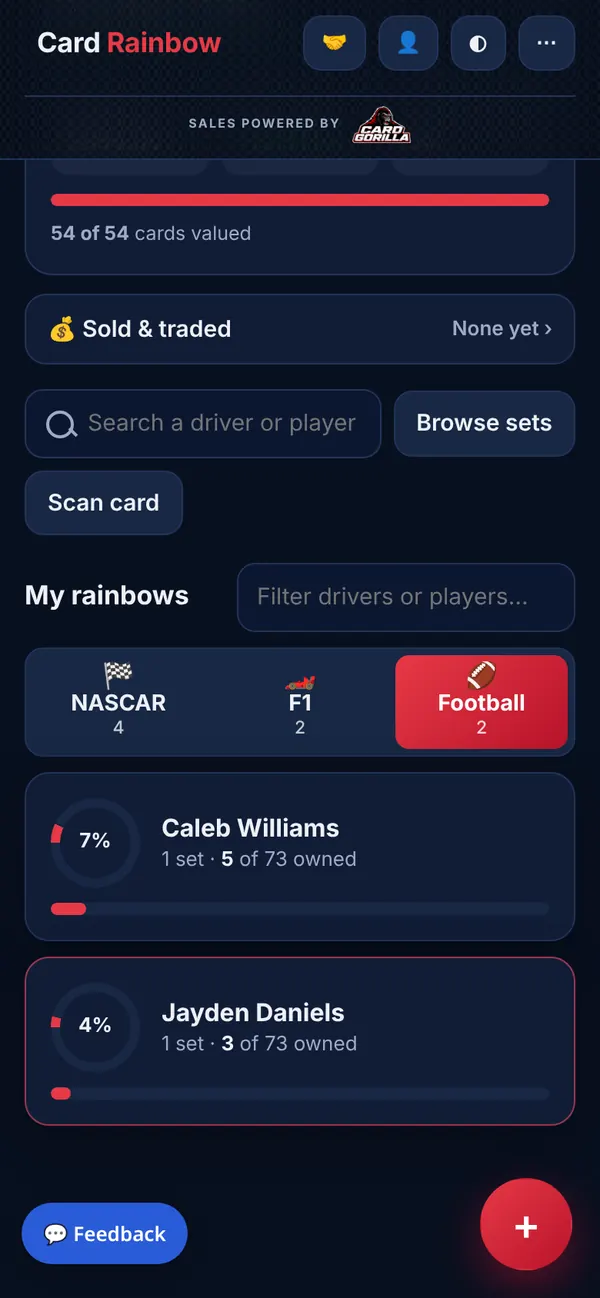
  1. On the home screen, find the tabs under My rainbows: 🏁 NASCAR 🏎️ F1 🏈 Football. The small number is how many rainbows you have in each.
  2. Tap a tab to see just that sport. The app remembers the last one you picked.
  3. New rainbows go in the right tab on their own, based on the set you picked.
  4. The same tabs show up in Browse sets and in search results.
Building one by hand? Type F1 or Football in the Sport box so it lands in the right tab. Anything else shows under NASCAR for now. My Collection totals always include every sport.
↑ Back to topics
My rainbows with the Football tab selected, showing Caleb Williams and Jayden Daniels
The Football tab
6

Scan a card with your camera

Skip the typing. Point your phone at a card and Card Rainbow finds it in the checklists.

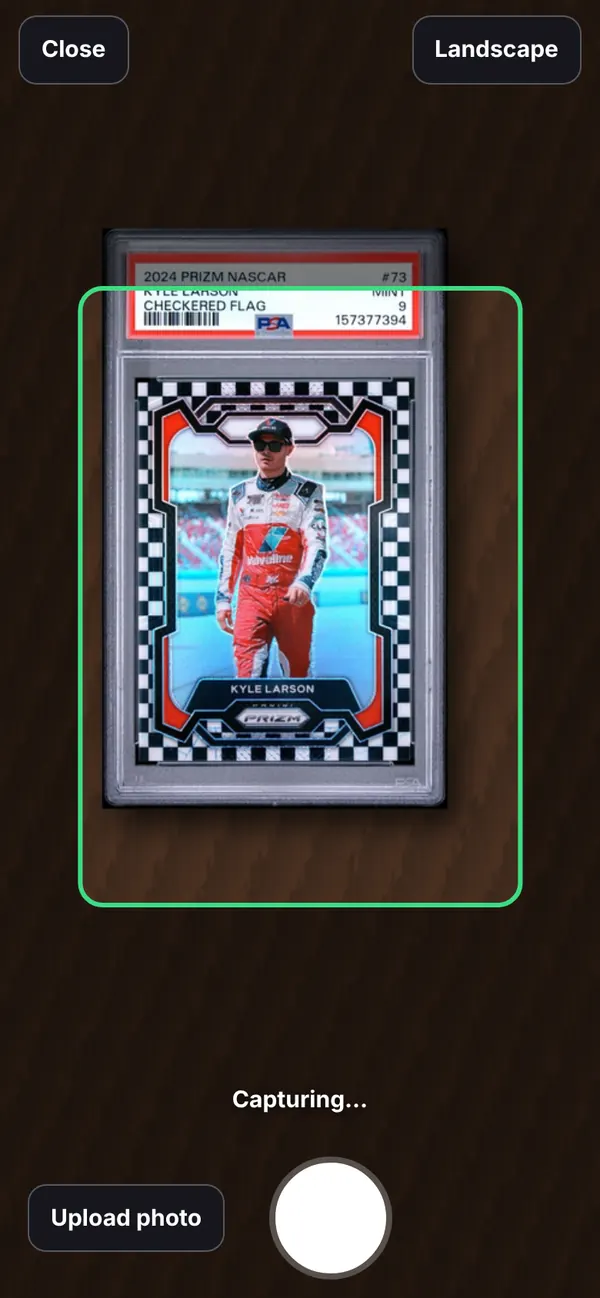
  1. Tap Scan card on the home screen (or inside a rainbow). Allow the camera if your phone asks.
  2. Hold the card inside the outline. When it’s steady and sharp it snaps the photo on its own, or tap the round white shutter button.
  3. Wait a moment while it says Scanning card…
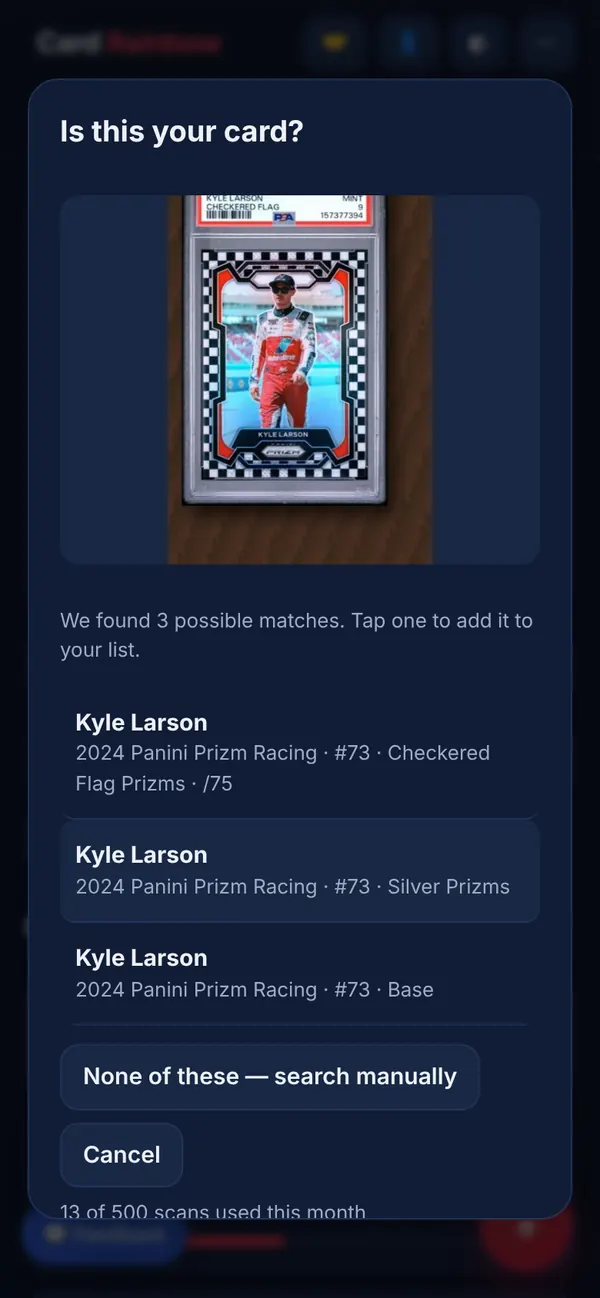
  4. On Is this your card?, tap the right match (driver, set and parallel).
  5. Done! The card is added to your rainbow and checked off as owned.
Good to know:
  • Upload photo scans a picture you already took. Landscape is for sideways cards.
  • On a computer, drop photos in, tap Choose photos, or Use webcam.
  • Wrong matches? Tap None of these — search manually.
  • Scan limits: App Base 500 a month, App Plus 5,000, App Premium 10,000. The scan screen shows how many you’ve used, and so does 👤 Account › AI scanning. Your scans reset every month, and there’s also a daily safety limit.
  • Scanning needs an internet connection. It matches NASCAR and F1 cards. For football cards, use search or Browse sets.
↑ Back to topics
▶ Watch it · 10 sec
Scanning a Kyle Larson card
7

Find a card you need for sale

Every card you don’t own has shortcut buttons to shop for it.

  1. Open a rainbow and find a card you still need (one without a check mark).
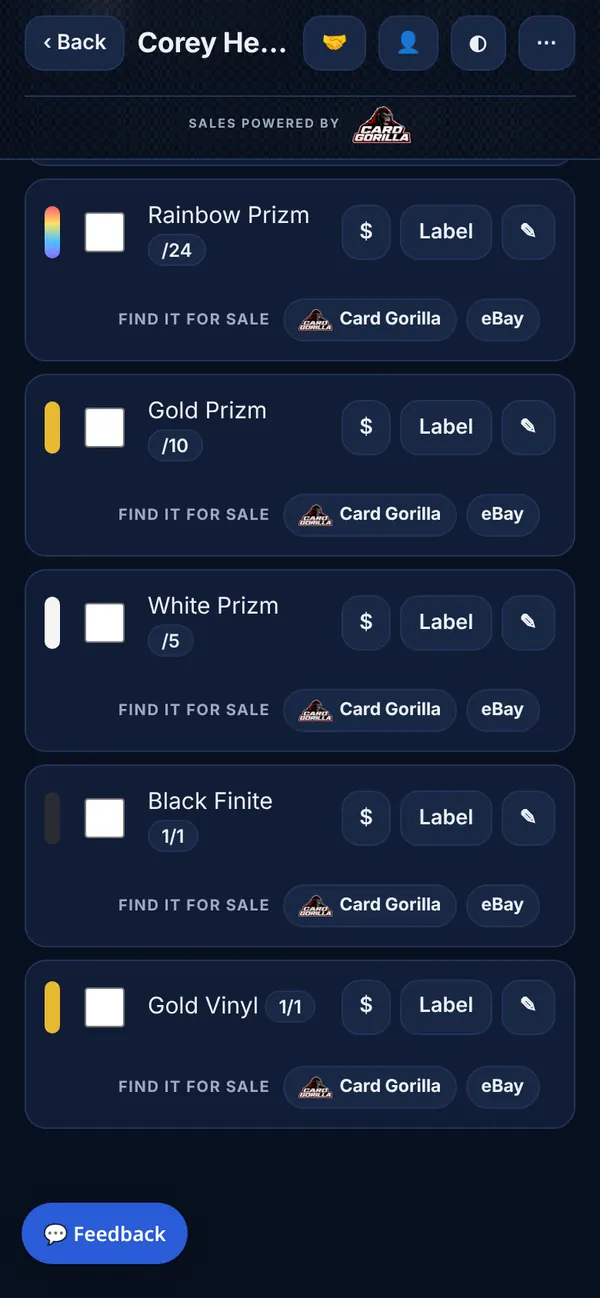
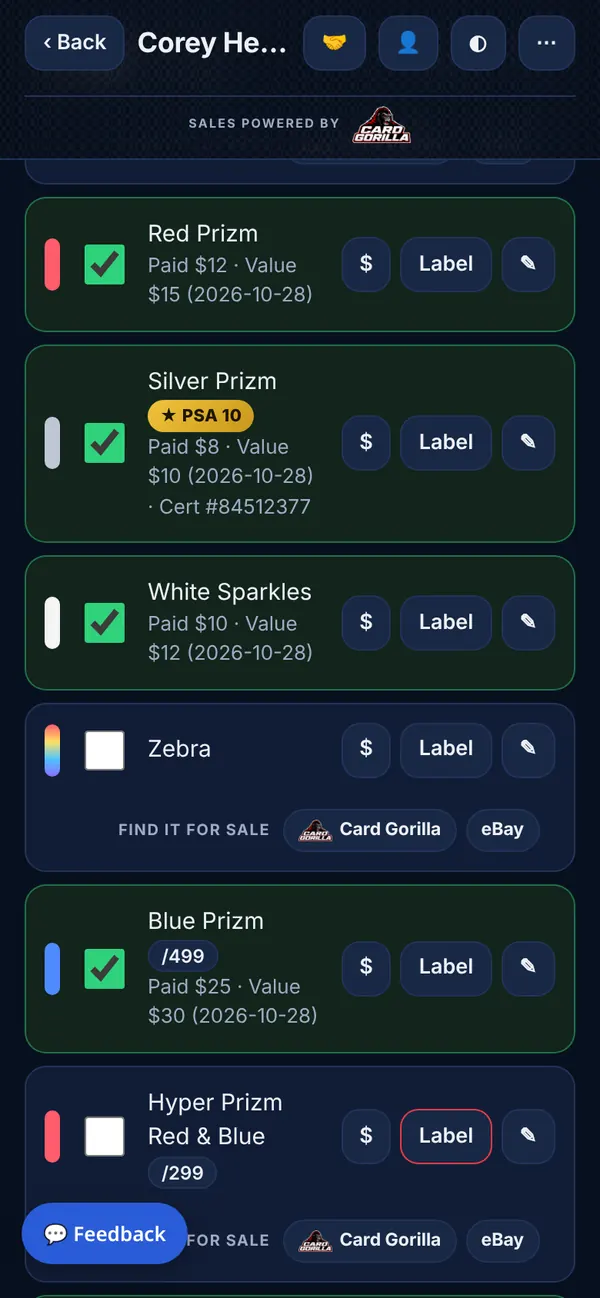
  2. Under it, look for FIND IT FOR SALE. Tap Card Gorilla or eBay.
  3. A new window opens with a search for that exact card. Your rainbow stays open in the app.
Tip: the same buttons are in the edit screen (✎) for cards you don’t own yet. Once you check a card off, its buttons go away.
↑ Back to topics
Needed cards with Find it for sale buttons for Card Gorilla and eBay
Find it for sale buttons
8

Track cards sent to grading

Keep track of cards that are away at PSA, BGS, SGC or CGC, and show off the grade when they come back.

  1. Open the rainbow and tap ✎ on the card.
  2. In the Grading box, choose Sent to grading, pick the grading company, and check the date sent. Tap Save.
  3. The card shows an orange ⏳ At grading badge.
  4. When it comes back, tap ✎ again and choose Graded (back from grading). Type the grade (like 10 or 9.5) and the cert # from the slab label. Tap Save.
  5. Now it shows a gold badge like ★ PSA 10.
Don’t worry: cards at grading or graded still count as owned.
↑ Back to topics
▶ Watch it · 19 sec
Sent to grading, then graded
9

Mark a card sold or traded

Sold or traded a card? Record it so you can see your profit, and the card goes back on your “need” list.

  1. Open the rainbow and tap ✎ on the card you sold.
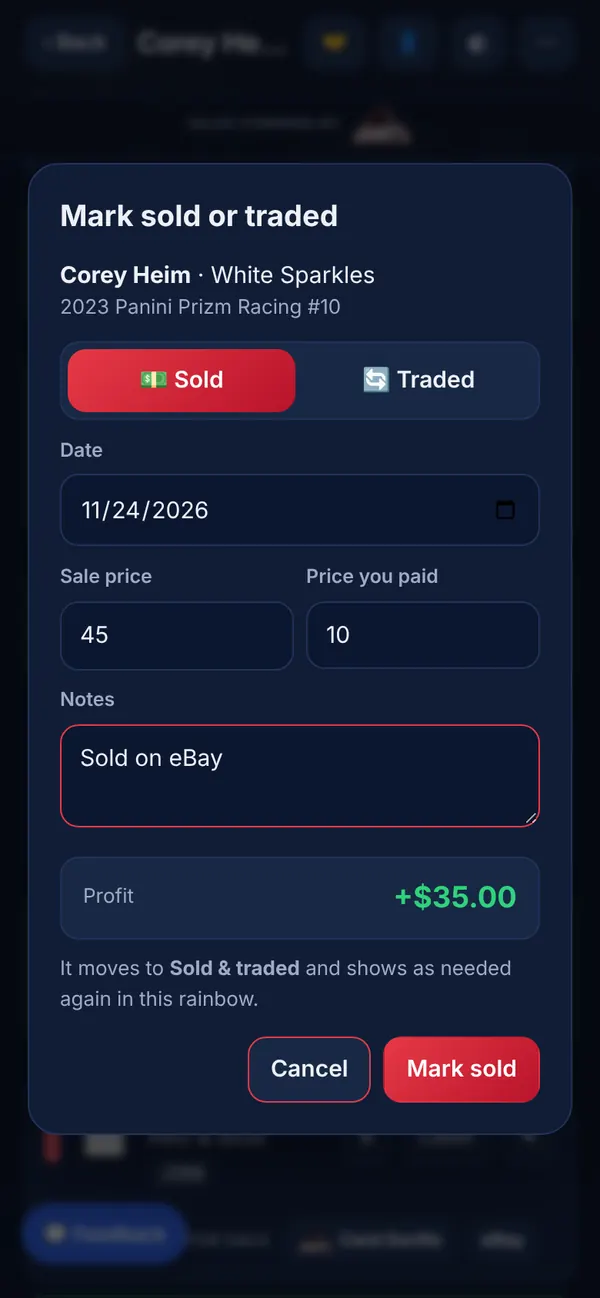
  2. Tap 💰 Mark sold or traded (near the bottom).
  3. Choose 💵 Sold or 🔄 Traded. Enter the date and the sale price (or what the trade was worth and what you got). The price you paid is filled in for you, and your profit shows right away.
  4. Tap Mark sold (or Mark traded).
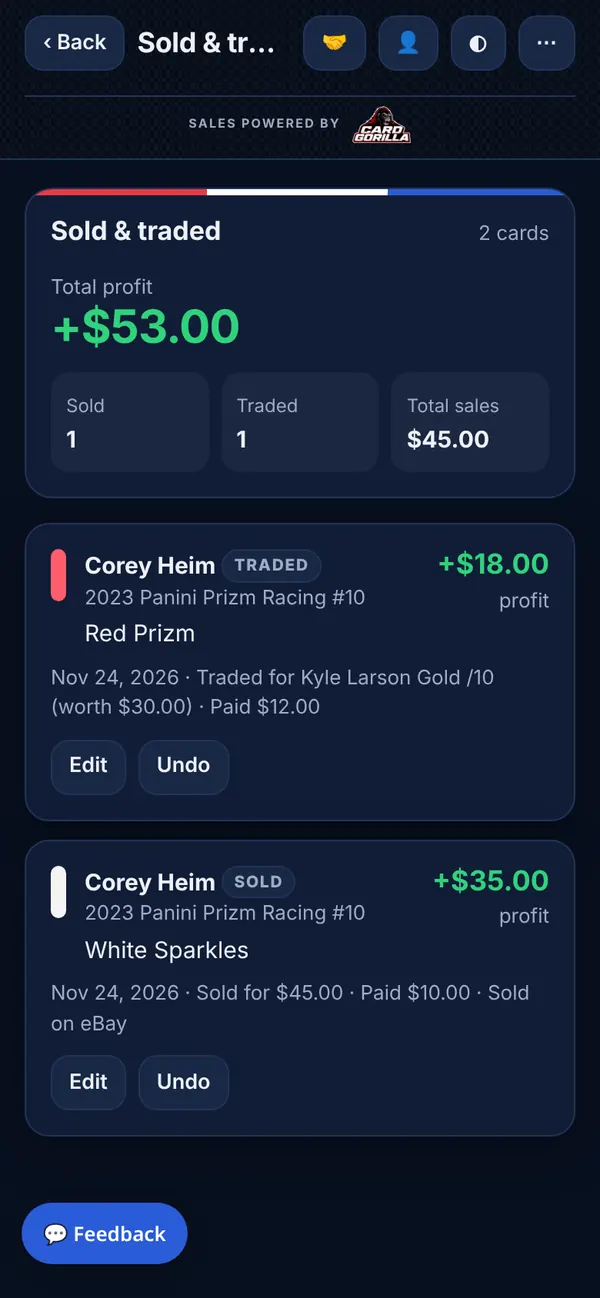
  5. To see your history, tap 💰 Sold & traded on the home screen. You’ll see each card, your total profit, and your total sales.
Made a mistake? In Sold & traded, tap Edit to fix the details, or Undo to put the card back in your rainbow as owned.
↑ Back to topics
▶ Watch it · 13 sec
Marking a card sold
10

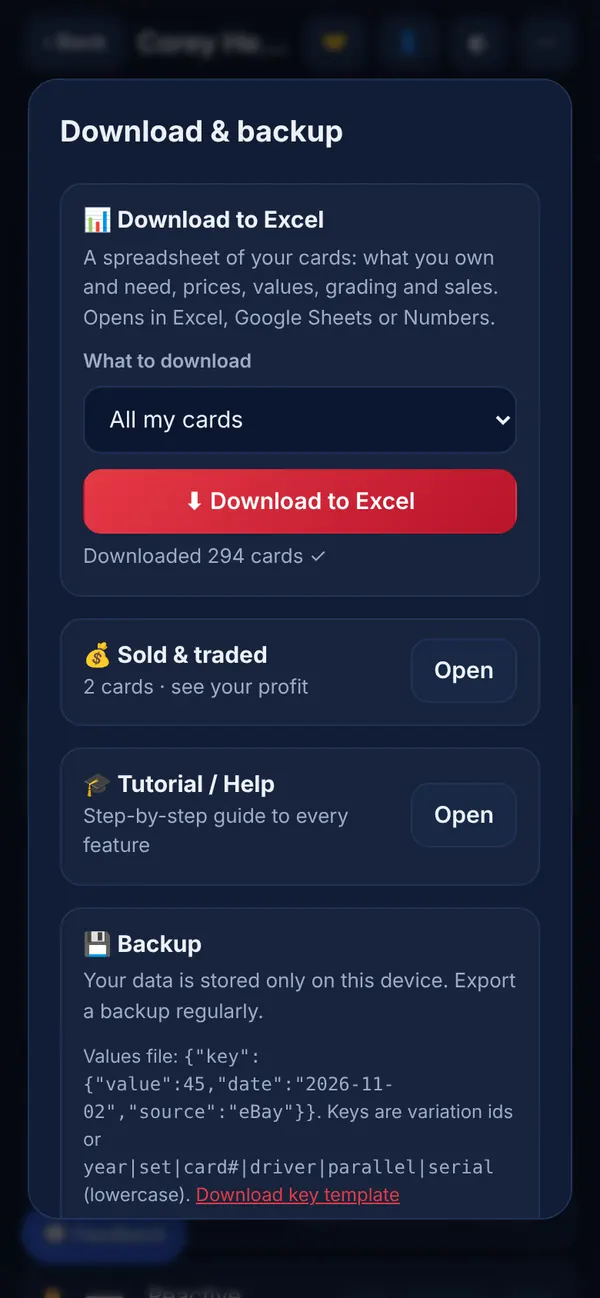
Download your collection to Excel

Get a spreadsheet of your cards: what you own and need, prices, values, grading and sales. It opens in Excel, Google Sheets or Numbers.

  1. Tap ⋯ at the top right. (On a computer, click Download & backup on the left.)
  2. Under What to download, choose All my cards, one sport, or just the rainbow you’re in.
  3. Tap ⬇ Download to Excel.
  4. You’ll see “Downloaded … cards ✓”. The file is in your phone’s or computer’s Downloads.
↑ Back to topics
▶ Watch it · 7 sec
Download to Excel
11

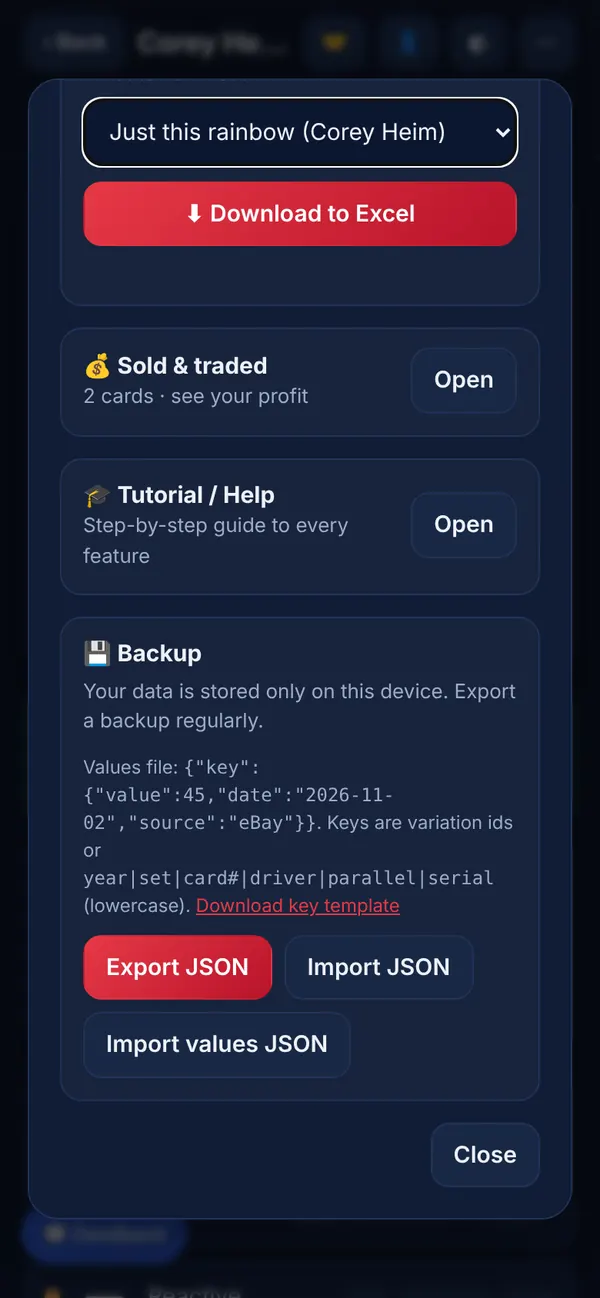
Back up and restore your data

Your lists sync to your account, so they’re safe if you lose your phone. A backup file is a nice extra copy.

  1. Tap ⋯ and scroll down to 💾 Backup.
  2. Tap Export JSON to download a full backup file. Keep it somewhere safe.
  3. To restore, tap Import JSON and pick your backup file. If you already have rainbows, the app asks: OK merges them together, Cancel replaces everything.
  4. Advanced: Import values JSON updates lots of card values at once from a file. Tap Download key template to get a file to fill in.
↑ Back to topics
Backup section with Export JSON, Import JSON and Import values JSON buttons
The Backup section
12

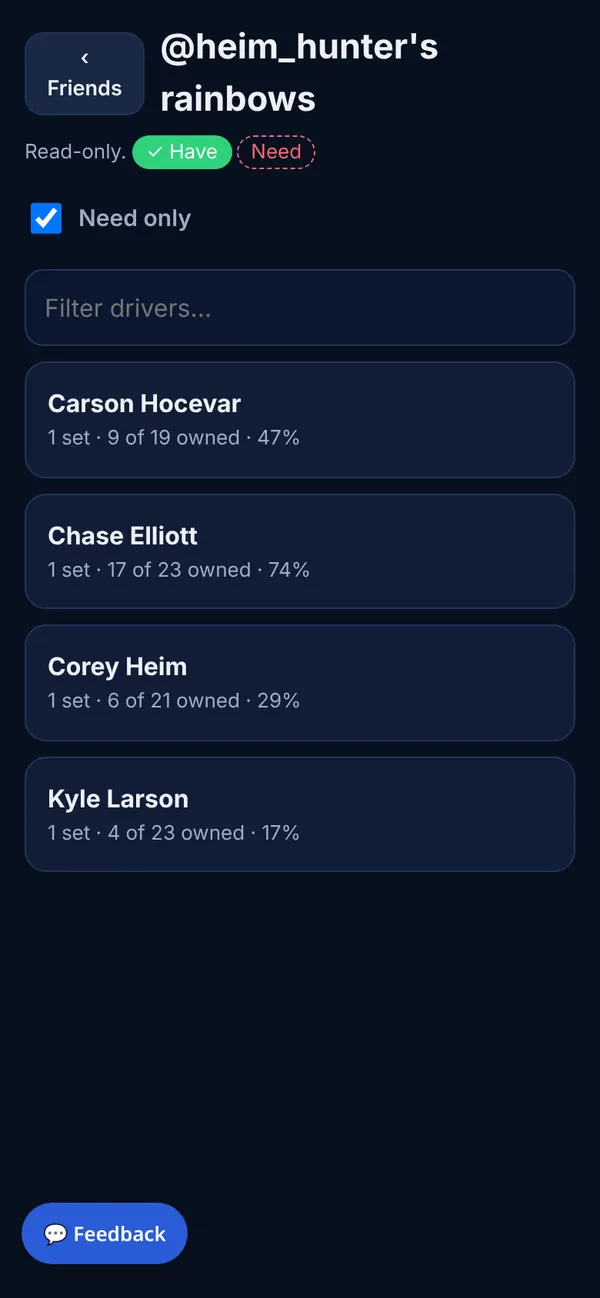
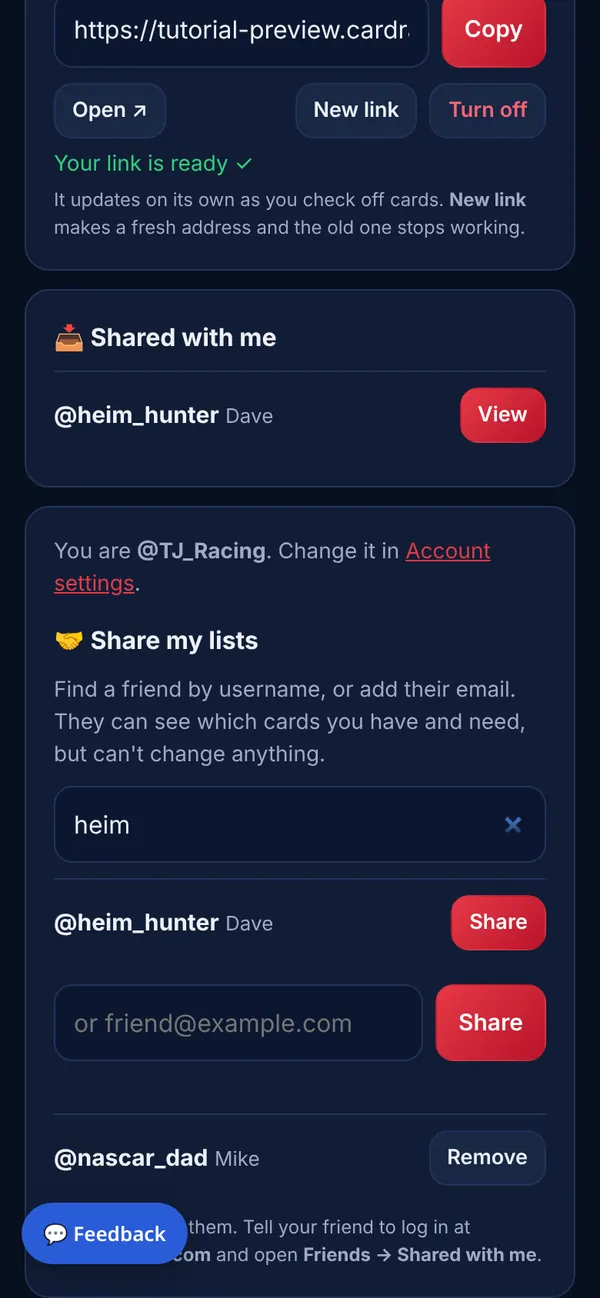
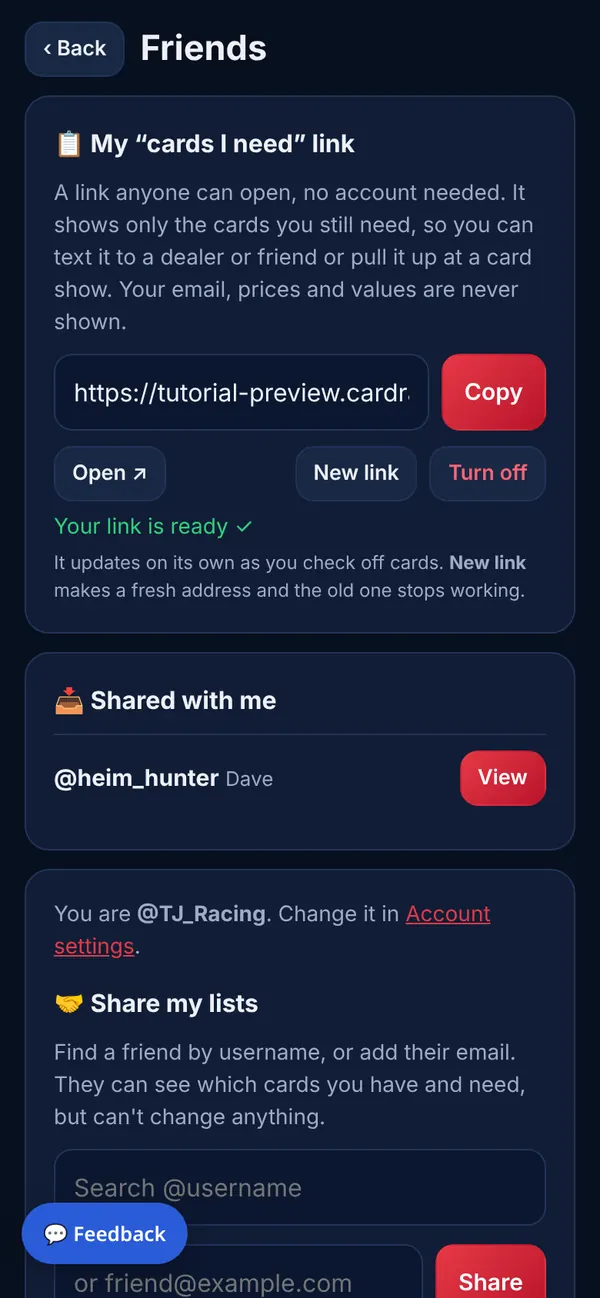
Share your lists with friends

Let a friend see which cards you have and need. They can look, but they can’t change anything.

  1. Tap 🤝 at the top to open Friends.
  2. Under 🤝 Share my lists, search your friend’s @username and tap Share. Or type their email and tap Share.
  3. Tell your friend to log in and open Friends › Shared with me. (We don’t email them.)
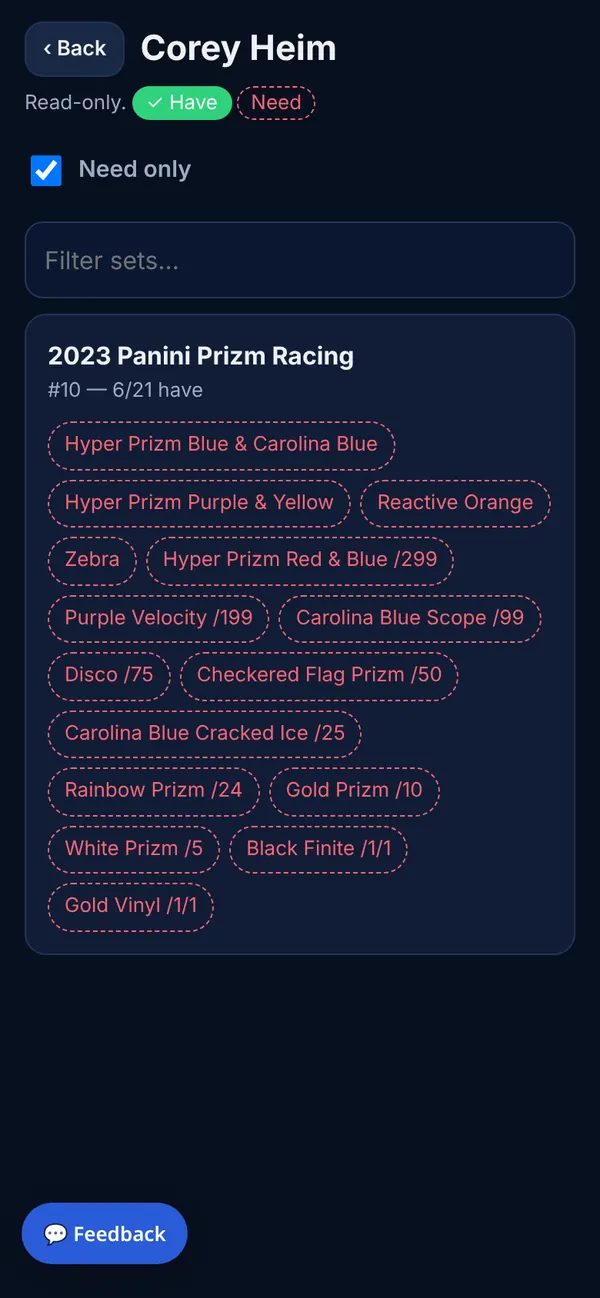
  4. To see a friend’s list, open 📥 Shared with me and tap View. Owned cards show ✓ Have and missing ones show Need.
  5. Turn on Need only to see just what they’re missing. It’s great for trades and card shows.
Stop sharing any time: tap Remove next to their name. You can change your @username in 👤 Account settings.
↑ Back to topics
Friends screen with Share my lists, a username search for heim and a Share button
Sharing with a friend
14

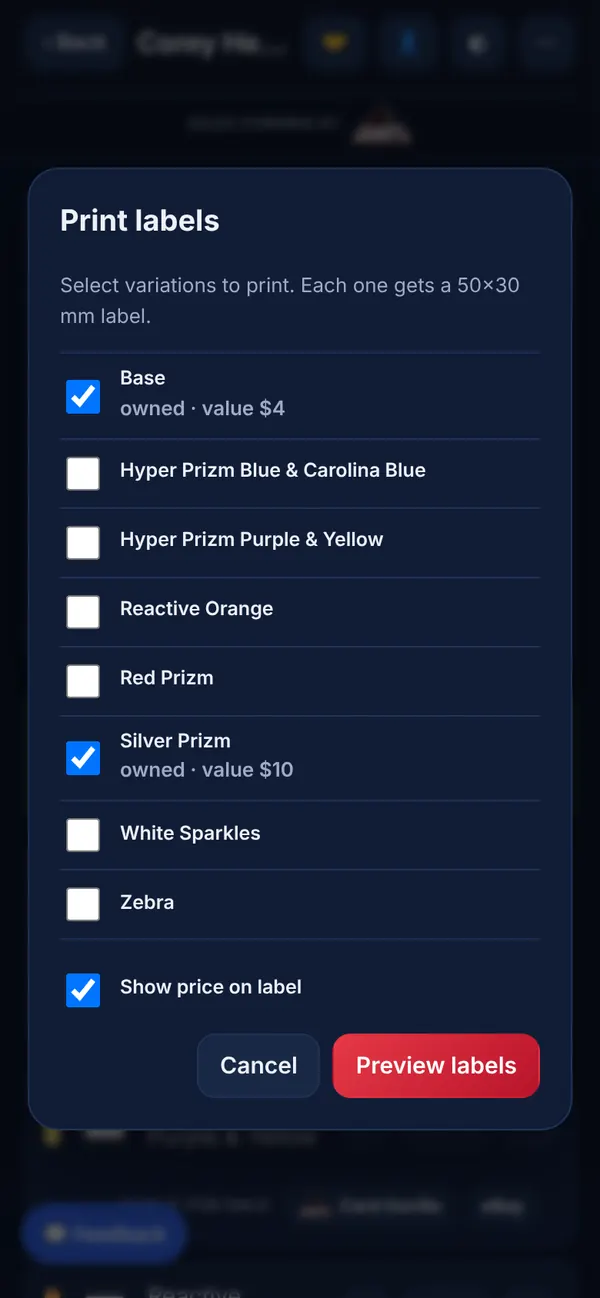
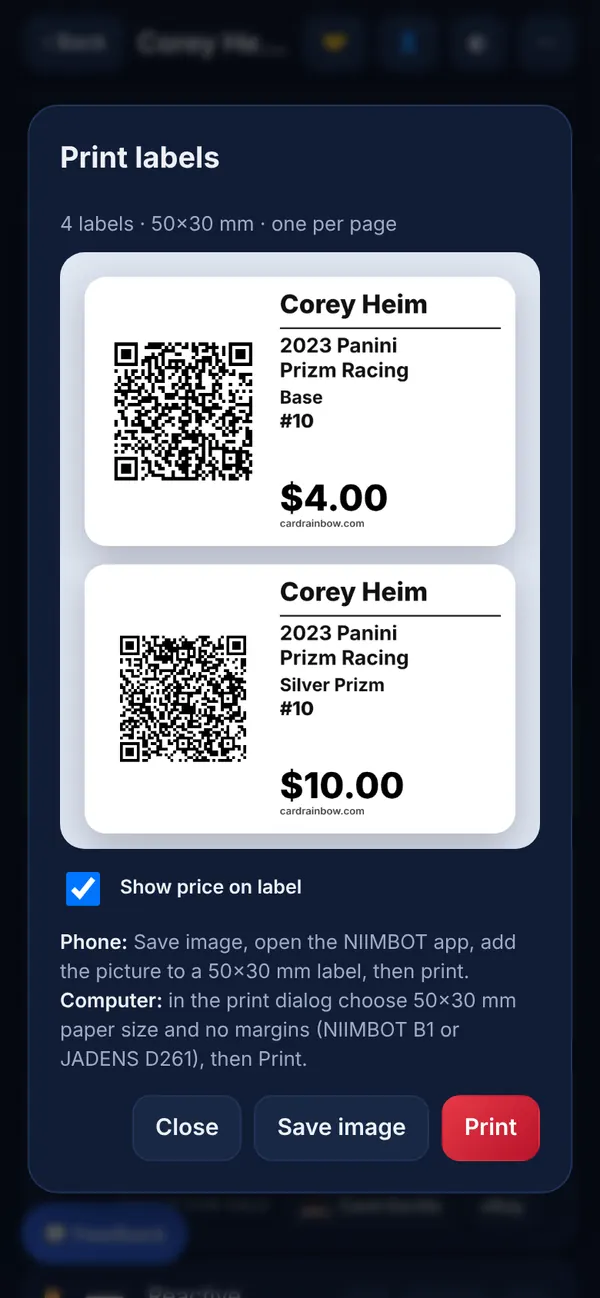
Print labels for your cards

Print a small 50×30 mm label with the card details, price and a QR code, for top loaders, boxes or sales.

  1. Open a rainbow and tap Print labels. (Or tap Label on one card.)
  2. Tick the cards you want. Turn Show price on label on or off.
  3. Tap Preview labels.
  4. Computer: tap Print. In the print box choose 50×30 mm paper and no margins (JADENS D261 or NIIMBOT B1).
  5. Phone: tap Save image, open the NIIMBOT app, add the picture to a 50×30 mm label, and print.
The QR code opens that card on cardrainbow.com, with an Open in my collection button.
↑ Back to topics
Print labels preview with two Corey Heim labels showing QR codes and prices
Label preview
15

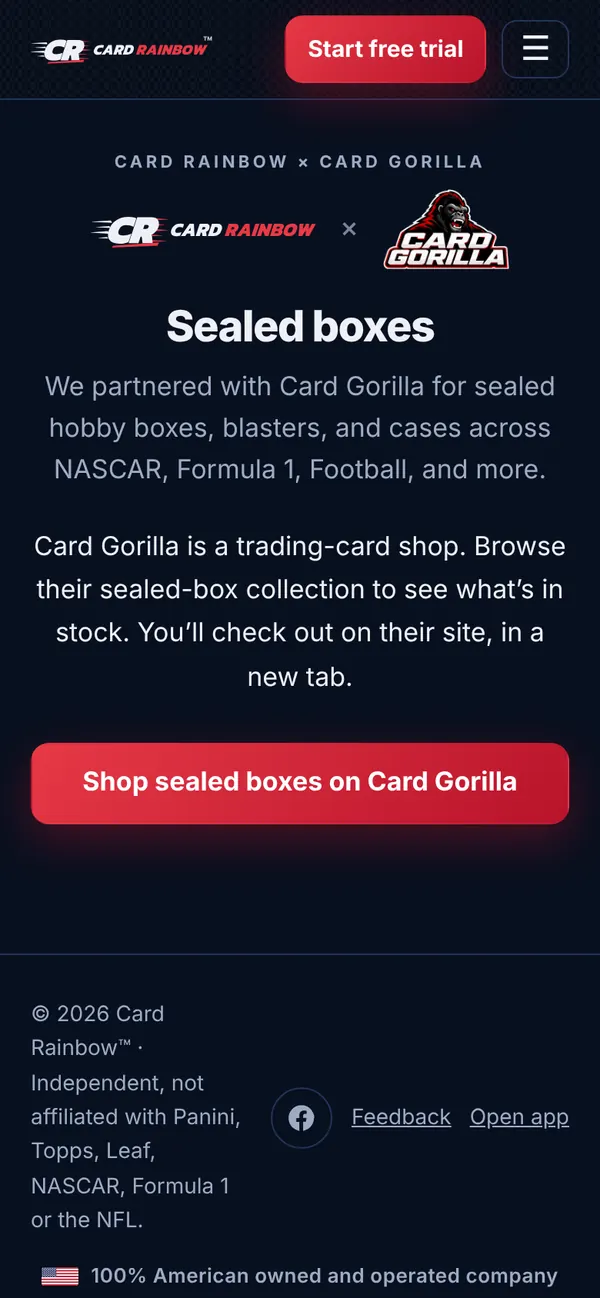
Shop sealed boxes

Looking for hobby boxes, blasters or cases? We’ve partnered with Card Gorilla.

  1. Tap Sealed boxes in the top menu of our website (on a phone, tap ☰ first). In the app on a computer, it’s in the left menu.
  2. Tap Shop sealed boxes on Card Gorilla. Card Gorilla’s site opens in a new tab.
The Card Gorilla logo at the top of the app (“Sales powered by”) also takes you to their store.
↑ Back to topics
Sealed boxes page with the Card Rainbow and Card Gorilla logos and a Shop sealed boxes button
The Sealed boxes page
16

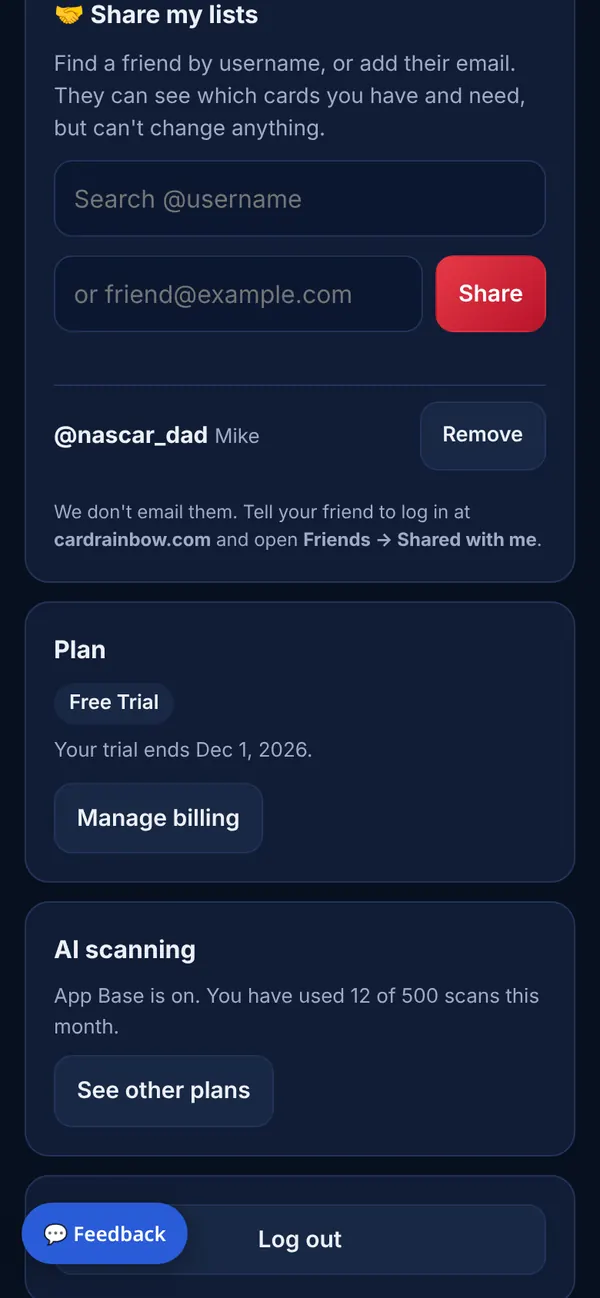
Account settings, your plan and scans used

Change your name, email, password or username, and check your plan.

  1. Tap 👤 at the top.
  2. Update your Full name, password, email or 🏷️ Username.
  3. Under Plan you’ll see if you’re on the free trial and when it ends. Tap Manage billing to change or cancel your plan.
  4. Under AI scanning you’ll see how many scans you’ve used this month. Tap See other plans for more scans.
  5. Tap ‹ Back to return to your rainbows. Log out is at the bottom.
↑ Back to topics
Account settings showing Plan: Free trial with Manage billing, and AI scanning: 12 of 500 scans used
Plan and AI scanning
17

Light mode, dark mode and offline

Make it easy on your eyes, and keep using it with no signal.

  1. Tap ◐ at the top to switch between dark and light mode. (On a computer: Toggle light / dark.)
  2. Open the app once while you’re online. After that, your rainbows keep working with no signal, like in a crowded card show.
  3. Changes you make offline sync to your account when you’re back online.
Needs internet: scanning, sharing, eBay and Card Gorilla links, and opening Browse sets or search for the first time.
↑ Back to topics
The home screen in light mode
Light mode
18

Put Card Rainbow on your home screen

Card Rainbow works like an app. Add it to your home screen so it opens with one tap.

  1. iPhone: open cardrainbow.com/app in Safari, tap the Share button (square with an arrow), then tap Add to Home Screen › Add.
  2. Android: open cardrainbow.com/app in Chrome, tap ⋮, then Install app or Add to Home screen.
  3. Find the Card Rainbow icon on your home screen and tap it. It opens full screen, just like an app.
↑ Back to topics
19

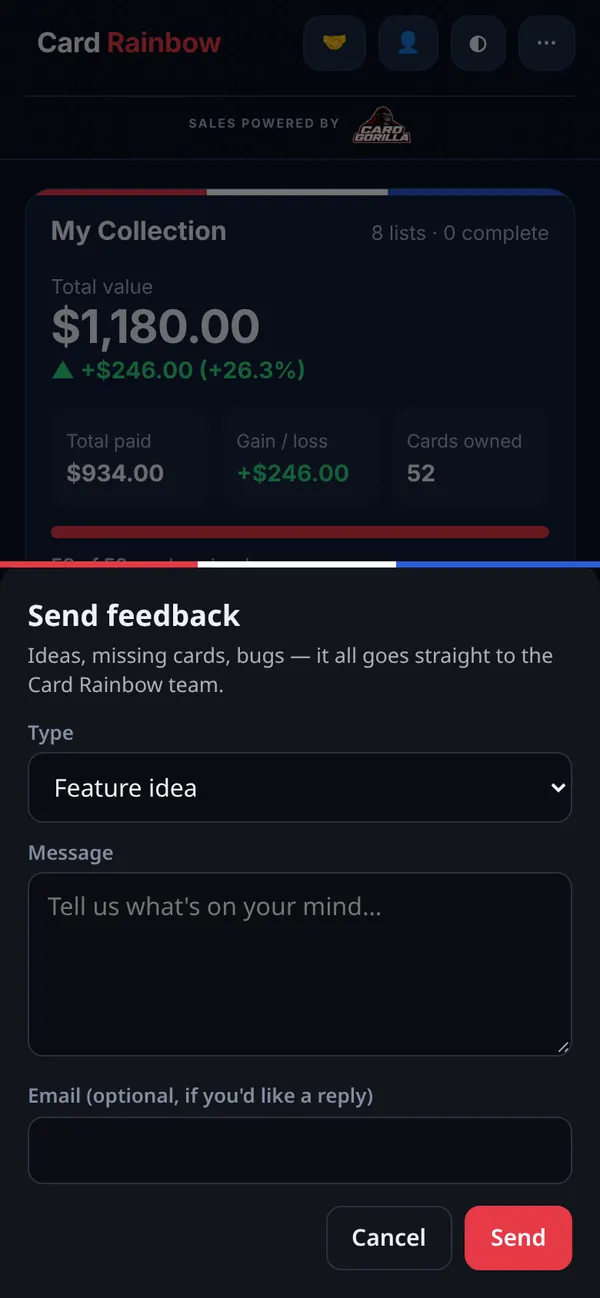
Send us feedback

Missing a card? Found a bug? Have an idea? We read every message.

  1. Tap 💬 Feedback at the bottom left of the app, or Feedback at the bottom of any page on our website.
  2. Pick a type: Feature idea, Missing or wrong card, Bug or Other.
  3. Type your message. Add your email if you’d like a reply.
  4. Tap Send.
↑ Back to topics
Send feedback form with type, message and optional email
The feedback form

Common questions

Quick answers to the things people ask most.

Do I need a card for the free trial?

No. Your first 7 days are free with no card. When the trial ends, the app asks you to pick a plan, and that’s when you enter a card at the secure checkout. Once you have a plan, change or cancel it any time in 👤 Account › Manage billing.

Why can’t I find a card in Browse sets?

Make sure the right sport is picked at the top (NASCAR, F1 or Football). If it’s still not there, tap + to build it by hand and tell us with 💬 Feedback, choosing Missing or wrong card.

My football rainbow is missing from My rainbows.

Tap the 🏈 Football tab under My rainbows. Each sport has its own tab.

What’s the difference between the checkbox and ✎?

The checkbox just marks a card as owned. ✎ opens the full details: price paid, value, notes, grading and Mark sold or traded.

Where did my card go after I marked it sold?

It moves to 💰 Sold & traded on the home screen, and shows as needed again in the rainbow. Tap Undo there if it was a mistake.

Will my rainbows be on my other devices?

Yes. Log in with the same account on your phone, tablet or computer and your lists sync.

Can friends change my lists?

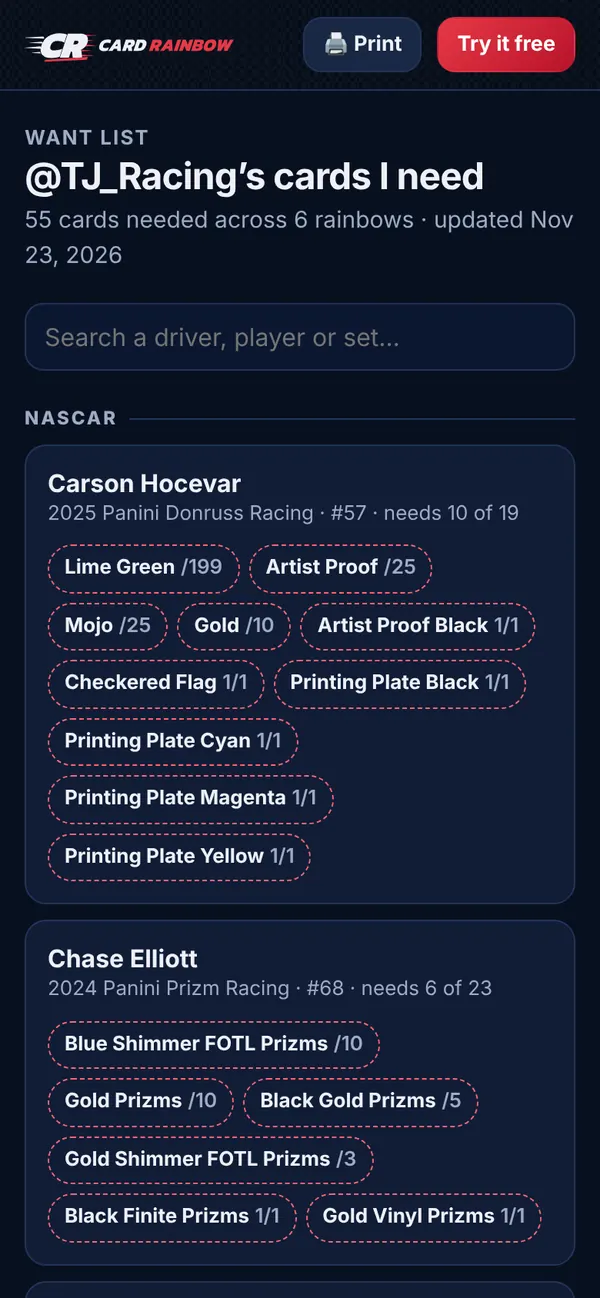
No. Friends and anyone with your “cards I need” link can only look. Your prices, values and email are never shown on the public link.

Why didn’t the scanner find my card?

Use good light, fill the outline with the card, and hold still. Scanning matches NASCAR and F1 cards. For football, use search or Browse sets. You can always tap None of these — search manually.

How do I see how many scans I have left?

The “Is this your card?” screen shows scans used this month, and so does 👤 Account › AI scanning.

Something looks out of date after an update.

Close the app completely and open it again, or refresh the page once.

Still stuck? Tap Feedback and tell us what’s confusing. We’ll help, and we’ll make this page better.
Ready to start your first rainbow?

7 days free. No card needed.